Import a curriculum
Upload a teacher’s manual as a PDF, or photograph the book’s contents page, and AI reads out the lesson list. Then enroll a child and schedule it.
Step by step
-
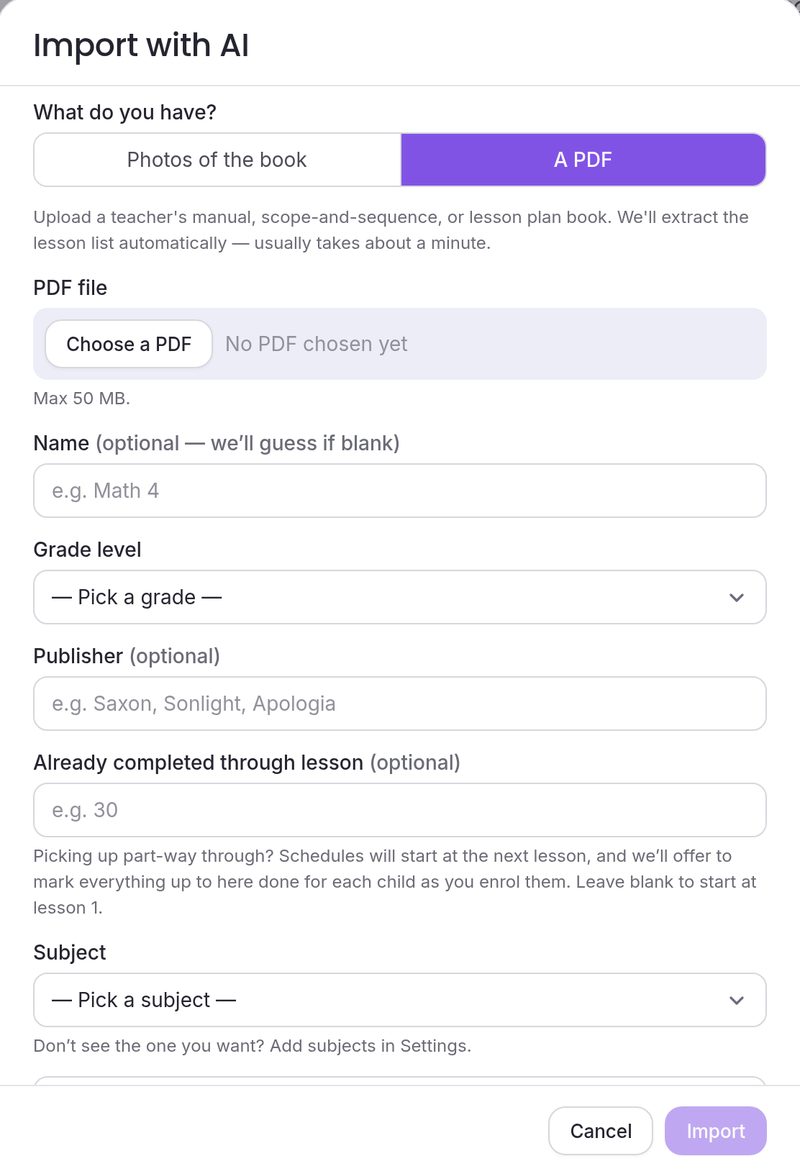
Open Curricula and press “Import with AI”.
Curricula is under Teach & Train in the sidebar.
-
Choose a PDF or photos of the book.
Under What do you have? choose A PDF and press Choose a PDF (up to 100 MB), or Photos of the book: the front cover if you like, plus the table of contents or lesson index (up to 12 photos). No camera on your computer? Press Use my phone’s camera, scan the code with your phone, take the photos there, and tap Send to my computer.
-
Pick a grade and a subject, then press “Import”.
Grade level and Subject are required. Name, Publisher and Already completed through lesson are optional.
-
Carry on while it reads.
It usually takes about a minute. The bell at the top of the app tells you when the lessons are ready.
-
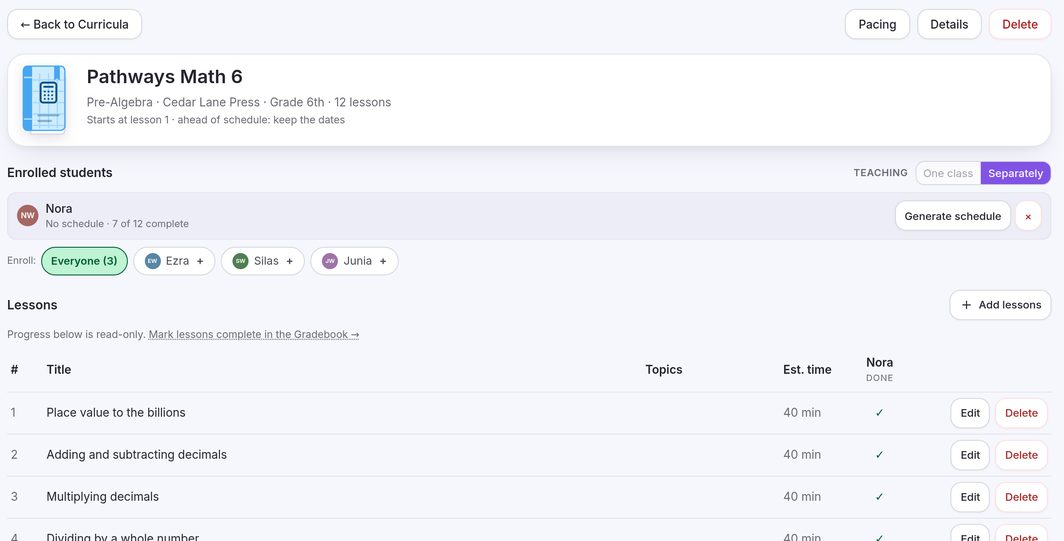
Check the lesson list.
Open the curriculum. Every lesson has Edit and Delete, and Add lessons fills any gaps.
-
Enroll a child and generate their schedule.
Enroll from the Enroll: row, press Generate schedule, choose a start date, the days of the week and a pace, and press Generate schedule again. The lessons land on your calendar through the end of your school year.
Common questions
What do I need before I import?
A PDF, or at least one photo of the contents page, plus a grade level and a subject. You don’t choose a child until afterwards.
How big can my PDF be?
Up to 100 MB. A very large file is read from its first pages, where the table of contents is, and the curriculum tells you how many pages were read.
Can I check the lessons before they’re used?
Yes. The lesson list is saved when the reading finishes, and you can edit, delete or add lessons straight away. Nothing goes on your calendar until you enroll a child and generate a schedule.
How many AI imports do I get?
Up to 10 a day once a card is on file. An account without a card on file gets one AI import, and a retry counts as one. Build by hand has no limit and schedules exactly the same way.
What if the import doesn’t work?
Press Retry extraction on the curriculum to read it again with a stronger model. A password-protected or damaged PDF can’t be read: remove the password or export a fresh copy, and import that.
The code for my phone stopped working.
Each code works once. Scan it within 10 minutes, and send the photos within 30. Press Cancel, then Use my phone’s camera again for a new code.
My book has no table of contents.
Use Build by hand and just say how many lessons the book has. The planner schedules numbered lessons, and you name them as you go.