Plan your week
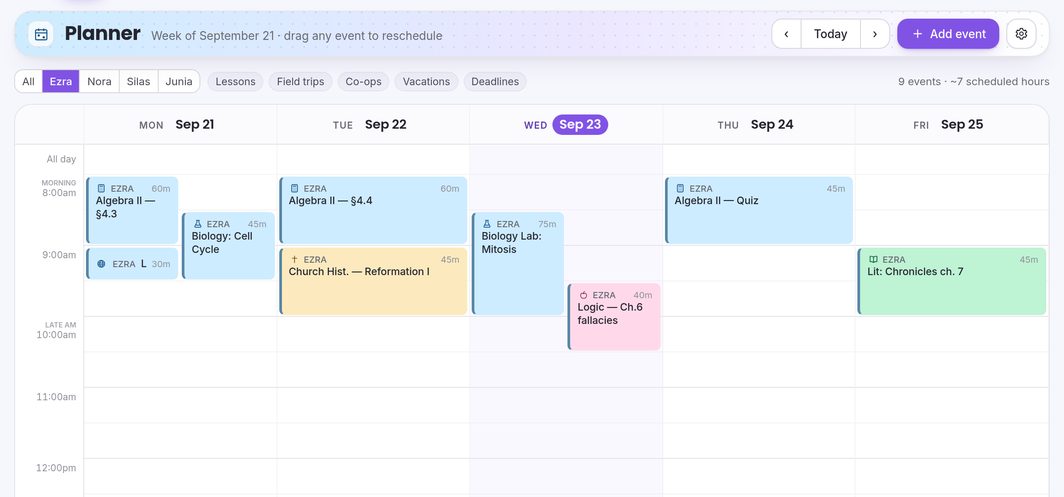
The Calendar shows your school week, Monday to Friday. Add lessons, trips and rest days, repeat them, and drag them to a new time.
Step by step
-
Open Calendar in the sidebar.
The first time, it asks how often you plan and which day suits you. Press Get started; you can change your answers later with the gear button.
-
Press “+ Add event”.
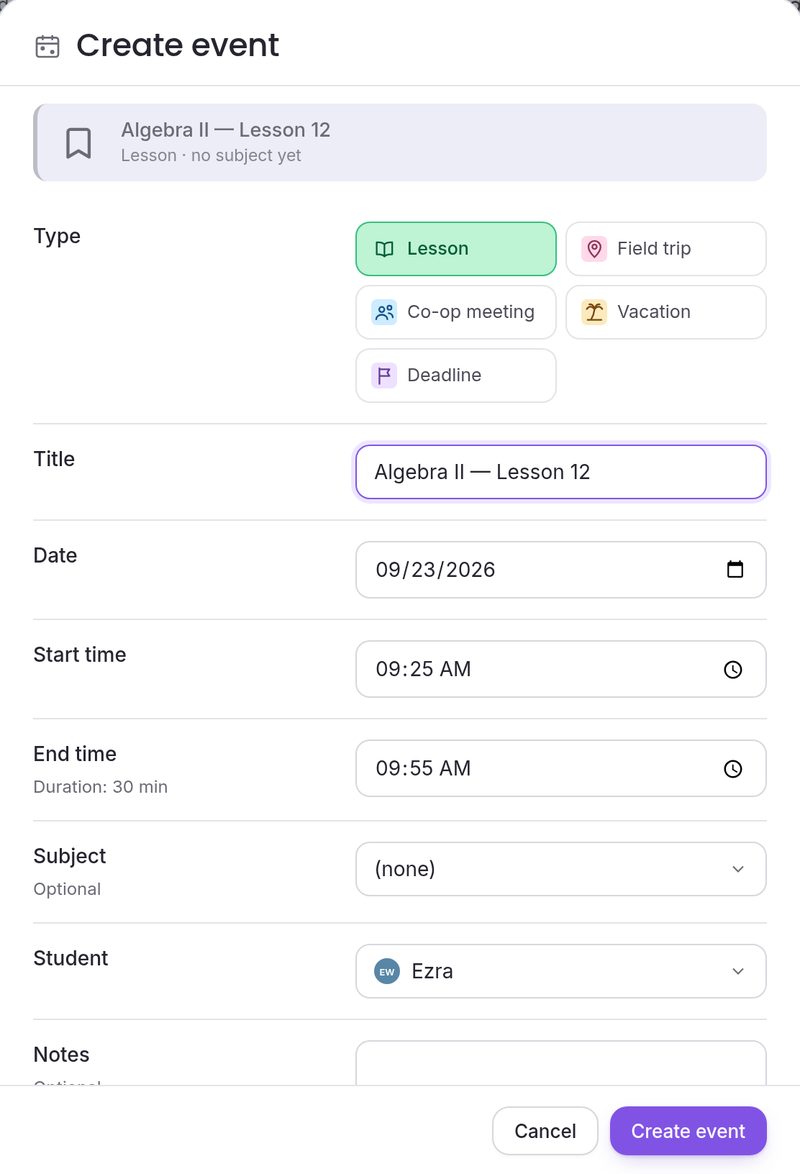
Choose a Type (Lesson, Field trip, Co-op meeting, Vacation or Deadline), then a Title, Date, Start time and End time. For a lesson, choose the Student and, if you like, the Subject. Shortcut: double-click an empty half-hour on the grid to start a lesson right there.
-
Repeat it if it happens every week.
Before you save, pick a Repeat (every school day, every weekday, weekly, every two weeks, monthly or every day) and when it stops: after a number of times, on a date, or at the end of your school year. Then press Create event.
-
Drag to reschedule.
Drag any timed event to a new time or day in the week. To move something to another week, open it and change its Date.
-
Show just what you need.
The strip under the banner filters to one child (or All) and to Lessons, Field trips, Co-ops, Vacations or Deadlines. Day, Month and Year views are at the top.
-
Tick lessons off as you teach them.
Mark a lesson done from the Today card on your dashboard, or in the Gradebook. Using a curriculum? Generate its schedule and every lesson is placed on your calendar for you.
Common questions
Can I drag lessons from a list onto the week?
Not from a list. Dragging moves an event that is already on the grid. To fill a week quickly, set a Repeat when you create a lesson, or import a curriculum and press Generate schedule to place every lesson at once.
How long does a repeating lesson keep going?
Until the stop you chose: after a number of times (12 unless you change it), on a date, or at the end of your school year. Every repeat is created when you save, so choose “until the end of the school year” for something that runs all year. A repeat can only be set when you first create the event.
Why isn’t Saturday on my week?
The Week and Day views show Monday to Friday. Anything on a weekend shows in the Month and Year views.
What happens when I add a vacation or mark a day absent?
That day’s unfinished lessons move to the next school day, at the same time of day. Finished lessons never move. You can turn this off in Settings → School year → Reschedule missed lessons.
Can I undo a change?
There is no undo button, but you can open any event to edit or delete it (deleting asks you first). For a repeating event, Apply to lets you change just this one, this and all following, or the whole series.
How do I mark a lesson done?
On the Today card on your dashboard, or in the Gradebook. The planner itself doesn’t have a tick box.