Add your children
Lessons, attendance, grades and the yearbook all follow the children you add. Only a first name is required.
Step by step
-
Open Students and press “+ Add a student”.
Students is under Family in the sidebar. You can also use Quick add → Student on the dashboard.
-
Type a first name.
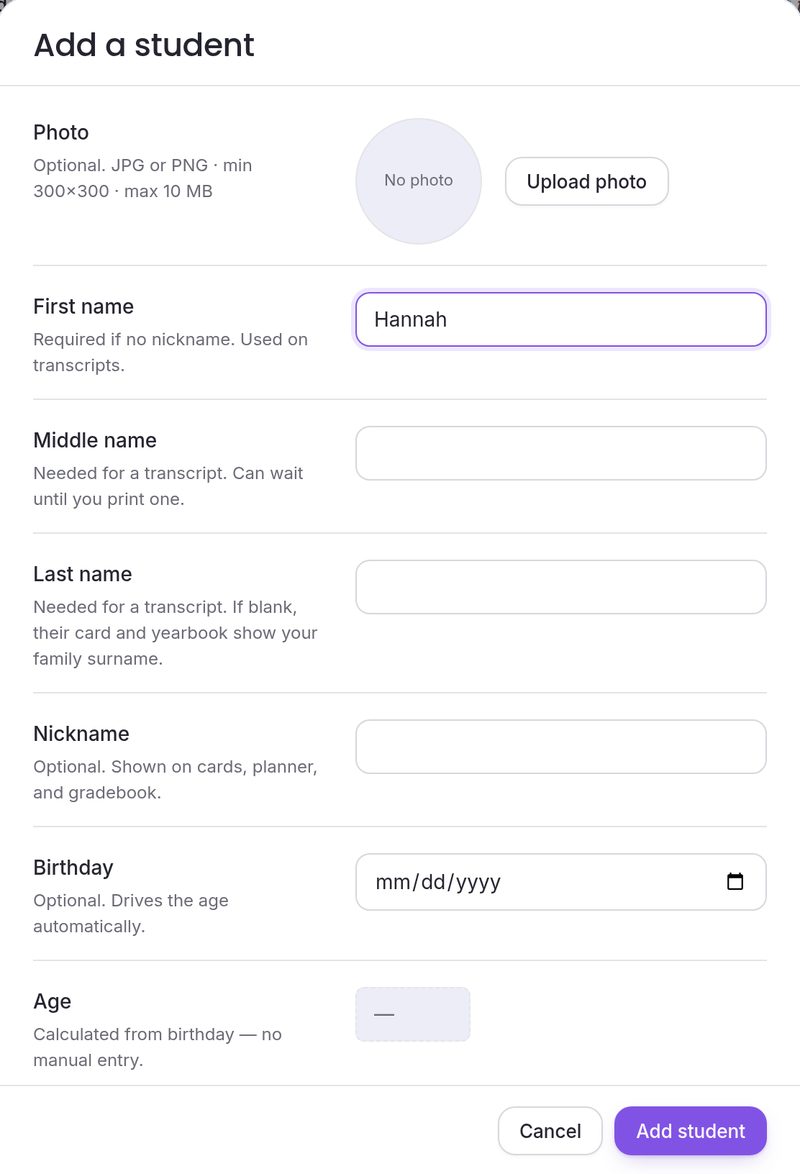
A First name (or a Nickname) is the only thing you have to fill in. The Add student button lights up as soon as there is one.
-
Add whatever else you have now.
Photo (JPG or PNG, at least 300×300, up to 10 MB), Middle name and Last name (a transcript needs both; until then a blank last name shows as your family surname), Birthday (the age is worked out from it), Grade, a profile colour, a Signature talent, a short bio, and Private notes that only you can see.
-
Press “Add student”.
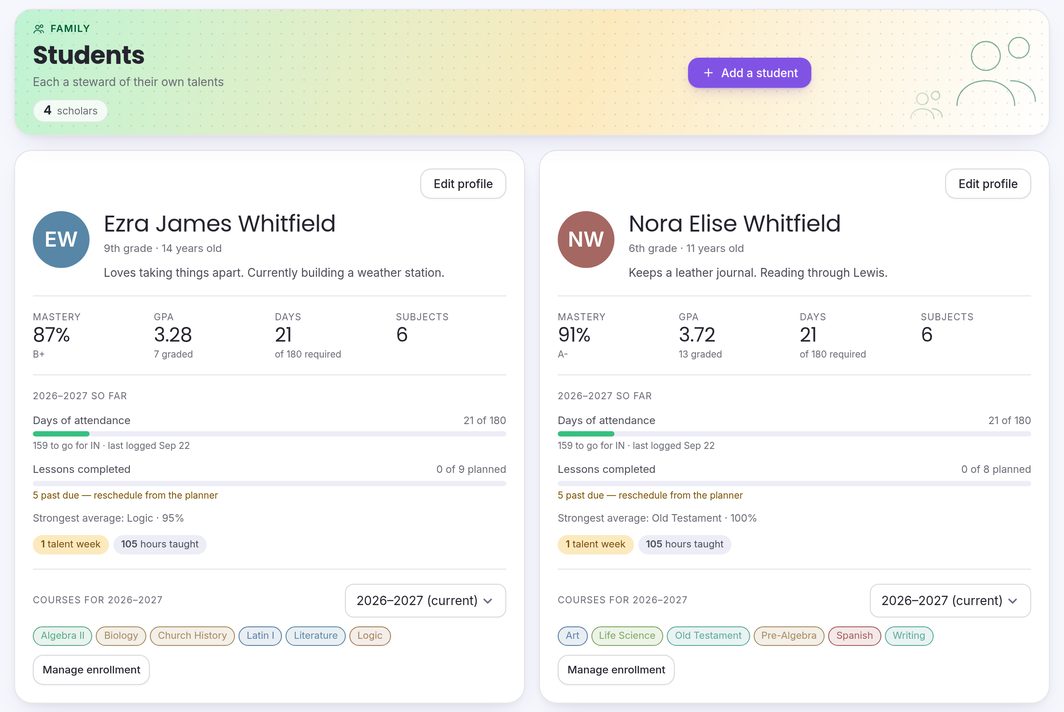
Their card appears on the Students page.
-
Give them this year’s subjects.
On their card, press Enroll for this year (or Manage enrollment once they have some). Choose the year, their subjects and any curricula, then Save enrollment.
-
Change anything later with “Edit profile”.
That is also where you set their Personal verse and Grading mode. Press Save changes when you’re done.
Common questions
What do I have to fill in?
Only a first name or a nickname. Everything else is optional and can be added later from Edit profile.
How many children can I add?
As many as you teach. One subscription covers every child in the family; there is no per-child charge.
Where do I enter their age?
You don’t. Add a Birthday and the age is calculated for you, and it stays right as they grow.
How do I choose letter grades or mastery?
Press Edit profile on the child’s card and choose a Grading mode: None — encouragement only, Mastery levels, or Traditional A–F + GPA. New students start on Mastery levels.
What name goes on the transcript?
Their first, middle and last name. A transcript can’t be generated until all three are filled in, so add them in Edit profile before you need one.
I deleted a child by mistake. Is their data gone?
Not for 90 days. Go to Settings → Recently deleted and press Restore, or Download data to keep a copy. After 90 days it is permanently removed. (You can’t delete your last student.)