Getting started: your first ten minutes
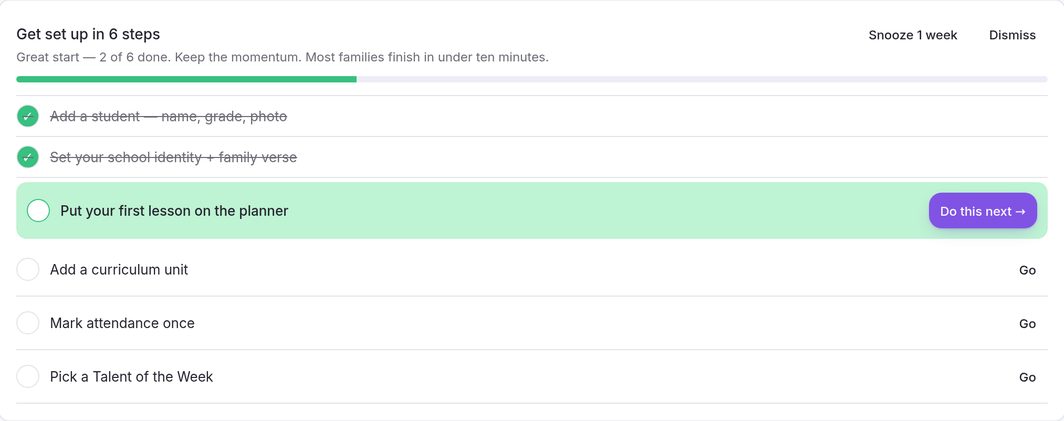
The dashboard walks you through six short steps. Designed to get you started in about ten minutes.
Step by step
-
Sign in and open your Dashboard.
The first time you sign in, a short walkthrough opens on its own. Nothing in it is required today: every step has a Skip button.
-
Work down “Get set up in 6 steps”.
The card on your dashboard lists them in order: add a student, set your school identity and family verse, put your first lesson on the planner, add a curriculum, mark attendance once, and pick a Talent of the Week.
-
Press “Do this next →”.
The highlighted row is your next step. Its button, and Go on the other rows, reopens the walkthrough on exactly that step.
-
Watch the ticks fill in.
A step ticks itself once the thing is really done. Your first attendance mark, for example, ticks “Mark attendance once”. When all six are done, the card goes away.
-
Need a break?
Snooze 1 week hides the card for seven days and Dismiss hides it for good. Restart walkthrough in the sidebar brings it back.
Common questions
I named my school, but the second step isn’t ticked.
That step needs a motto, a mission statement or a family verse. The school name alone doesn’t count. Add one in School Profile in the sidebar.
Where did my checklist go?
It hides once all six steps are done, after Dismiss, or for a week after Snooze 1 week. “Do this later” on the walkthrough closes only the walkthrough; the checklist stays. Restart walkthrough in the sidebar brings it back.
Do I have to do everything at once?
No. Skip any step you like; the checklist remembers where you are.
Can I add one lesson by hand instead of a whole curriculum?
Yes. On the dashboard, press Quick add and choose Lesson. Any lesson on your calendar ticks the planner step.
Can I run the setup again later?
Yes: Restart walkthrough in the sidebar, or Settings → Data & export → Replay the tour. Nothing is deleted.
Where is everything?
The sidebar is grouped. Plan: Dashboard and Calendar. Teach & Train: Curricula, Gradebook, Attendance, Reading Log, Service Hours and Reports. Family: Students, Field Trips, Co-ops and Yearbook. School & Compliance: School Profile, State Requirements and Teacher Resources. On a phone, the bar along the bottom holds Dashboard, Calendar, Students, Gradebook and Reports.