Print a transcript
Turn a child’s courses, grades and attendance into a print-ready transcript with your school’s name on it, and save it as a PDF.
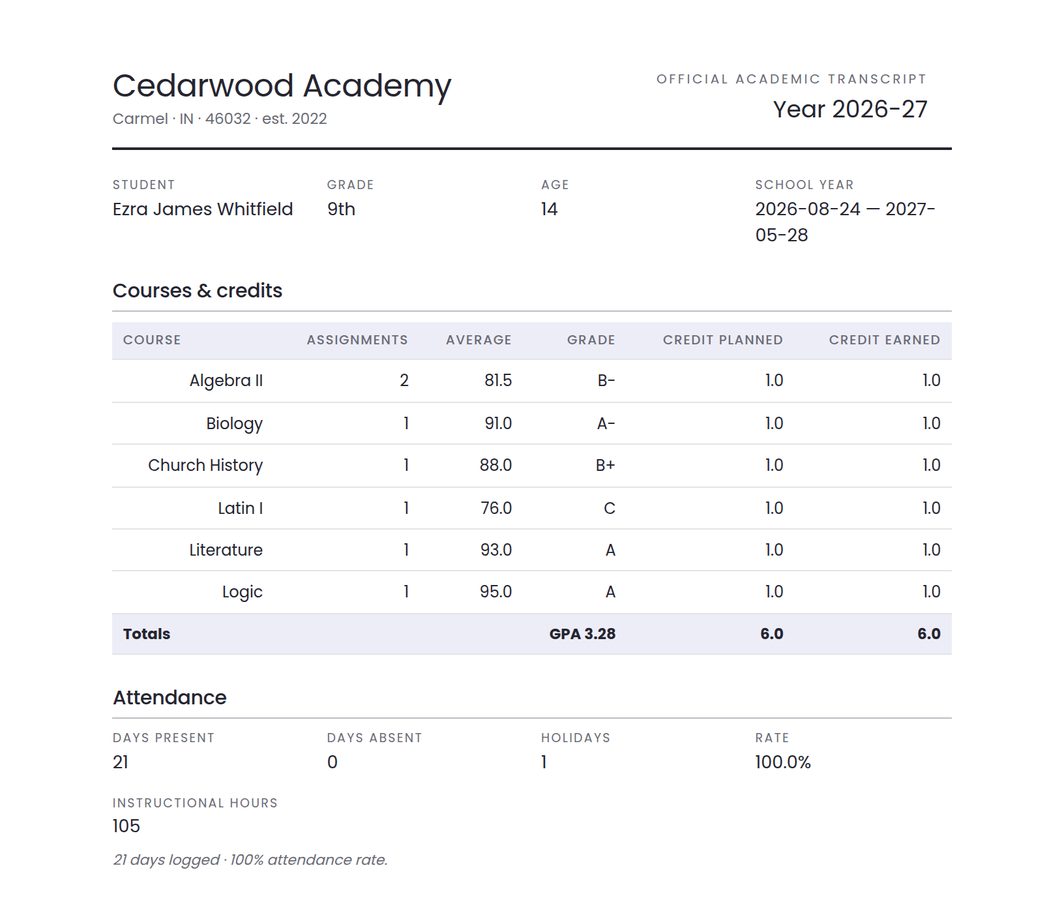
Step by step
-
Check the child’s legal name.
The transcript prints their first, middle and last name, and won’t generate until all three are filled in. Add them in Students → Edit profile. Your school name, logo and state come from School Profile.
-
Open Settings → Data & export.
Find the Transcript card. (It is also in Reports → Documents.)
-
Pick the student and press “Generate transcript”.
A print-ready page opens.
-
Print it or save it as a PDF.
Press Print / save as PDF, then choose “Save as PDF” in your browser’s print window if you want a file.
What’s on it
- Your school’s name and logo, city and state
- The student’s legal name, grade, age and school year
- Courses and credits: each course’s average and letter grade, credits planned and earned, and GPA
- Attendance totals, plus instructional hours if you log them
- Test scores, if you’ve logged any
- Graduation progress, from 9th grade up
- Your family verse, if you’ve set one
- Signature and certification lines
Common questions
Why is “Generate transcript” greyed out?
The child needs a first, middle and last name. Add the missing ones in Students → Edit profile.
Why is a course missing?
Only subjects the child is enrolled in for this school year are printed. Enroll them from their card on the Students page (Enroll for this year or Manage enrollment). Assignments with no subject, or dated outside your school year, aren’t counted.
Why does it say “Year summary”?
Below 9th grade the document is titled Year summary. From 9th grade up it is an Official academic transcript.
My child is graded on mastery. What prints?
By default, mastery scores are printed as A–F letters with a note explaining it. To print your own mastery labels instead, go to Settings → Grading and choose Print my band names.
Can I print a single term?
Yes, once you have set up terms. In Reports → Overview, choose the child, pick the Term scope, and press Export transcript (Export year summary for a child not on letter grades).
When does a course earn its credit?
When its average is passing: 60% or higher. A course with a failing average earns none. Nothing else needs marking: the scores you enter in the Gradebook are what count.
How is the GPA worked out?
Each course’s average becomes a letter and its grade points (A 4.0, A− 3.7, B+ 3.3 … D− 0.7, F 0). The GPA is the average across courses, weighted by credits. On the Weighted 5.0 scale (Settings → Grading), honors courses get an extra point; mark them in Reports → Documents → Course honors.